Today, we're launching the Hex CLI — the most ergonomic tool for data teams and agents.
The way data teams work is changing. Instead of juggling browser tabs, the best data teams work alongside coding agents directly from their terminal. They're collaborating with Claude Code, Codex, or Cursor — giving their agent instructions, and letting it figure out what commands to run. Some teams take it even further: rarely touching their keyboards at all, using voice-to-text to whisper directly into their agent's ear.
We've been watching this shift closely. At the center of it all is the terminal. And when your agent can handle all of that from one place, opening a separate tool to manage Hex starts to feel like a wall you shouldn't have to hit.
So, we built the Hex CLI.
Your agent can now reach into Hex the same way it reaches into everything else in your stack — programmatically, from the terminal, without breaking the workflow you've already built.
We want Hex to be the best place for data work, wherever you choose to do it. The CLI is the first step toward making that true for the terminal (and there's more on the way).
Here are a few ideas to get you started
Script your Hex workflows
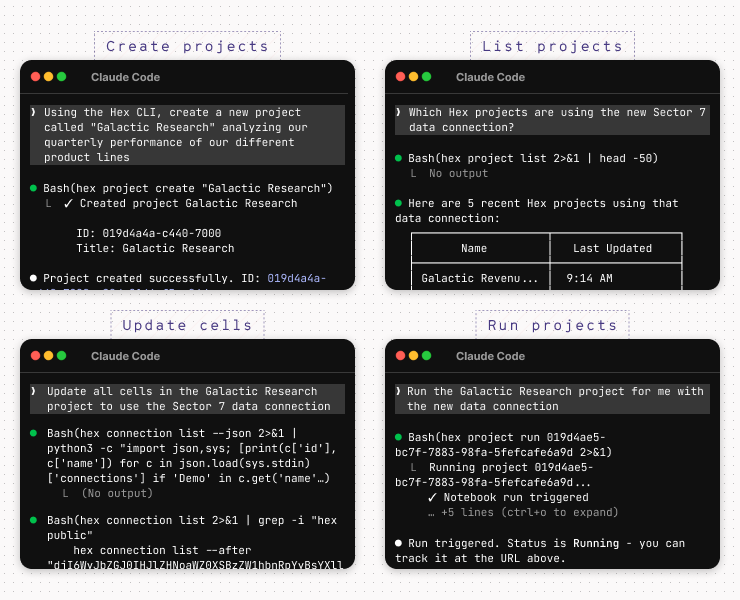
From the CLI, you can create projects and cells, update SQL or Python, delete cells, run projects…and more.
You can read the full list of commands in our GitHub repo. We’ve also included a Claude skill that teaches your agent how to use the CLI.
Move analyses into Hex
Starting your Hex journey? Now, you can move analyses across faster than ever.
Use your BI tool’s API to fetch the SQL powering the most popular dashboards (like Nick T has done here), and have Claude transfer the SQL into new Hex projects.
Connect workflows
Were you assigned a ticket to make some data model changes? Have your agent fetch the content of that ticket (e.g., with the Linear CLI), then work on the changes, while writing SQL in Hex to validate the results.
Make changes at scale
Once those changes are made, chances are, some dashboards might break. Ask your coding agent to find projects that contain SQL referencing the affected tables, have it replace the column en masse, and then run the notebook to check for errors.
You can also do things like swap data connections in multiple projects, or have the agent update SQL across multiple projects to enforce your SQL style guide.
Get started with the CLI
To install the CLI, run brew install hex-inc/hex-cli/hex or curl -fsSL <https://hex.tech/install.sh> | bash from your Terminal.
Once installed, get started with hex auth login.
If you want to teach Claude how to use the CLI, install our Claude skill with hex install skill --claude.
The sky’s the limit.
One of the most exciting things about CLIs is that customers have been surprising us with how they are already using it, and what they want to do next.
Got a Claude skill you think might be useful for others? Have requests for what comes next? Reach out to let us know!